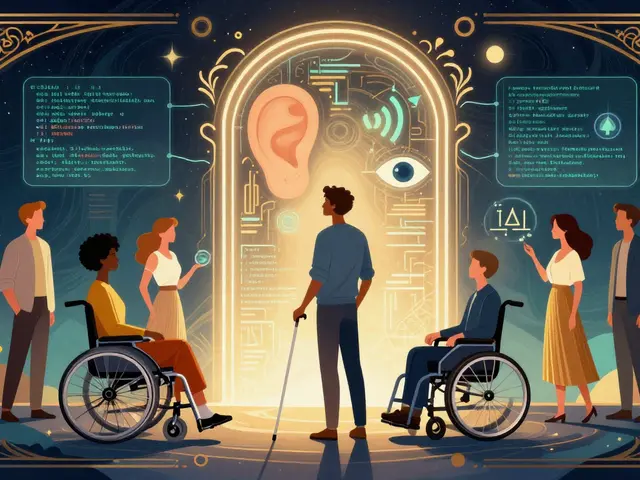
When AI starts designing buttons, menus, and forms, who makes sure they work for everyone? Not just the people who use a mouse and see the screen clearly-but the ones who navigate with a keyboard, rely on a screen reader, or use voice commands. This isn’t a bonus feature. It’s the baseline. And right now, AI-generated UI components are getting better at this-but they’re far from perfect.
Why This Matters Right Now
In 2023, WebAIM found that only 3% of the top 1 million websites met basic accessibility standards. That’s not a glitch. It’s a systemic failure. Most companies don’t have the budget, time, or expertise to build accessible interfaces from scratch. Enter AI: tools that promise to generate code with built-in keyboard navigation, ARIA labels, and screen reader compatibility. But here’s the catch: AI doesn’t understand accessibility the way a human does. It follows patterns, not principles.Take a simple button. To an AI, it’s just a <button> element. But to someone using a screen reader, it needs the right aria-label, proper focus state, and no keyboard traps. AI can generate the HTML. But can it anticipate that a modal dialog should trap focus, then release it cleanly when closed? Often, no. And that’s where things break.
What AI Actually Generates
Modern AI tools for UI design-like UXPin’s Merge AI, Workik’s Accessibility Code Generator, and Adobe’s React Aria-don’t just spit out pretty layouts. They generate code. Real, runnable code. And they’re starting to bake in accessibility rules.UXPin’s AI, for example, automatically adds semantic HTML structure and suggests ARIA roles like role="dialog" or aria-labelledby as you drag and drop components. Workik goes further: it doesn’t just suggest-it writes the JavaScript needed to manage focus order, handle keyboard events like Tab and Escape, and even adds skip links for screen reader users. These aren’t hypothetical features. They’re live in tools released in 2023 and 2024.
But here’s what they don’t do well:
- Dynamic content changes (like live search results or auto-updating alerts)
- Complex drag-and-drop interfaces (new in WCAG 2.2)
- Contextual ARIA labels (e.g., "Add to cart" vs. "Add to cart (out of stock)")
- Keyboard traps in nested modals or dropdowns
Dr. Sarah Horton from The Paciello Group says it plainly: "AI can accelerate accessible component creation, but it cannot replace human judgment for complex interactions." In her 2024 review of AI-generated modals, 22% still had keyboard traps-meaning users got stuck and couldn’t escape.
How the Tools Compare
| Tool | Focus | Keyboard Support | Screen Reader Support | Price (2024) |
|---|---|---|---|---|
| UXPin Merge AI | Design-to-code workflow | Automatic ARIA, focus management suggestions | Basic label generation, limited dynamic content | $19/user/month |
| Workik | Code fixes for existing components | Generates full keyboard event handlers | Implements ARIA live regions, landmark roles | Free tier; $29/month premium |
| Adobe React Aria | Developer primitives | Low-level keyboard logic (you build the UI) | Requires manual ARIA implementation | Free, open-source |
| Aqua-Cloud | Testing, not generation | Identifies keyboard traps | Flags screen reader issues | $499/month |
The difference between these tools is huge. UXPin helps designers. Workik helps developers. React Aria gives you the building blocks but doesn’t hand you the finished house. Aqua-Cloud doesn’t build anything-it just audits.
And here’s the kicker: none of them handle complex data visualizations well. If your AI generates a chart with interactive bars, will it add aria-describedby to explain each bar? Will it let keyboard users navigate the data points in order? Almost never. That’s still manual work.

What You Need to Know Before Using AI
If you’re thinking of using AI to generate accessible UIs, here’s what you need to do:- Start with design tokens. AI tools need rules. Set your contrast ratio (minimum 4.5:1), minimum font size (16px), and touch target size (44x44 pixels). If you don’t define these, the AI won’t guess them right.
- Test with real screen readers. Don’t trust automated tools alone. NVDA, JAWS, and VoiceOver behave differently. What works in Chrome might break in Safari. Always test.
- Don’t skip human review. AudioEye’s 2024 study found AI-generated alt text is only 68% accurate for complex images. That means two out of every five images might be mislabeled. That’s not just bad UX-it’s a legal risk.
- Allocate time for fixes. Teams that spend 15-20% of each sprint on accessibility validation cut defects by 63%, according to The Paciello Group’s case study with a Fortune 500 company.
One developer on Reddit said: "Spent 3 days fixing keyboard traps in an AI-generated modal." Another on GitHub said: "Saved us 40+ hours." Both are true. AI isn’t magic. It’s a tool. And like any tool, it’s only as good as the person using it.
The Bigger Picture: Compliance vs. Personalization
Most companies treat accessibility as a checklist: "Did we pass WCAG?" But Dr. Jakob Nielsen is pushing for something radical: "Generate a different interface for every user." Imagine an AI that notices you navigate with a keyboard, and automatically simplifies menus, increases spacing, and removes animations. That’s not compliance. That’s personalization.That future is coming. Google’s Accessibility Toolkit now suggests focus management for dynamic content. Microsoft’s Fluent UI integrates Azure AI to auto-generate ARIA labels. But this isn’t about making things "accessible." It’s about making them usable-for everyone.
Right now, we’re stuck in the middle. AI can handle the basics: buttons, forms, navigation. But when it comes to complex interactions, cognitive load, or emotional context-like explaining why a button is disabled or how to recover from an error-AI still flounders.

What’s Next
By 2027, Dr. Shari Trewin from IBM predicts AI will handle 80% of routine accessibility tasks. That’s huge. But she also warns: "Complex cognitive accessibility needs will still require human expertise."The real win won’t be an AI that passes every automated test. It’ll be an AI that knows when to say, "I can’t handle this. Let a human take over."
And that’s the shift we need: from automation to augmentation. AI doesn’t replace accessibility experts. It gives them more time to focus on the hard problems-the ones that matter most.
Can AI-generated UI components pass WCAG 2.1 automatically?
AI tools can generate components that meet many WCAG 2.1 criteria-like proper semantic HTML, ARIA labels, and keyboard navigation. But they often miss edge cases: focus order in dynamic content, complex form errors, or context-specific labels. Automated testing tools like Axe or Lighthouse may report "pass," but real users often encounter issues. Human testing with screen readers is still required for full compliance.
Do I need a dedicated accessibility specialist if I use AI tools?
Yes. Even the best AI tools don’t replace human judgment. IAAP’s 2024 survey found that 83% of teams with successful accessibility programs have at least one person focused on accessibility. AI can handle repetitive tasks-like adding ARIA roles-but only a human can test how a screen reader announces a new alert, or whether a keyboard trap exists in a nested menu. Think of AI as a co-pilot, not the pilot.
What’s the biggest mistake teams make with AI-generated accessibility?
The biggest mistake is assuming AI = complete accessibility. Many teams run an AI tool, see a "WCAG compliant" report, and move on. But automated tools only catch about 30% of accessibility issues, according to Deque’s 2023 study. The rest-focus management, semantic order, language context-require manual testing. Relying on AI alone can lead to legal risk, as seen in a recent DOJ settlement where AI-generated content failed Section 508 despite passing automated checks.
Which screen readers work with AI-generated components?
AI-generated components should work with all major screen readers: JAWS 2023, NVDA 2023.3, VoiceOver (macOS Ventura and iOS 16+), and ChromeVox. But compatibility depends on how well the AI implements ARIA and focus management. Tools like Workik and UXPin generate code that aligns with these tools’ expectations. Still, always test with the actual screen readers your users rely on-not just in Chrome, but in Safari, Firefox, and Edge too.
Are there free tools to test AI-generated UI accessibility?
Yes. Use browser extensions like axe DevTools or Lighthouse (built into Chrome DevTools) to run automated checks. For screen reader testing, NVDA (Windows) and VoiceOver (Mac/iOS) are free. You can also use the keyboard-only navigation test: unplug your mouse, then try to use every feature with Tab, Enter, and Escape. If you can’t complete a task, the UI isn’t fully accessible-even if the AI says it is.
What’s the difference between WCAG 2.1 and 2.2 for AI-generated components?
WCAG 2.2, released in October 2023, adds new requirements that directly affect AI-generated UIs: focus appearance (must be clearly visible), drag-and-drop accessibility (keyboard alternatives required), and persistent help (like tooltips that stay visible). Most AI tools still generate components based on WCAG 2.1. If you’re building for government or financial clients, you need to update your AI workflows to support 2.2-or risk non-compliance.