
When you're deep in a coding session and your AI assistant starts giving you weird suggestions-like adding a React component to a Python backend-you know something's off. It's not the AI's fault. It's the context. Most developers think giving more code to the AI helps. But the truth? It's not about how much you feed it. It's about how well you feed it.
Today’s AI coding assistants-GitHub Copilot, JetBrains AI Assistant, Amazon CodeWhisperer-aren’t just autocomplete tools anymore. They’re co-pilots. And like any good co-pilot, they need the right map, the right altitude, and the right weather report. That’s what prompt management in IDEs is all about: delivering clean, focused, relevant context so the AI actually understands what you’re trying to build.
Why Context Matters More Than Code Length
Early AI tools tried to dump your entire project into the prompt. Full file trees. All dependencies. Every comment ever written. That sounds thorough, right? But it’s wasteful. And noisy.
Modern systems like JetBrains AI Assistant 2.3 and GitHub Copilot Chat 4.1 use smart context filtering. They don’t send everything. They send what matters. According to benchmarks from Augment Code (March 2025), the best systems cut token usage by 38% by focusing on three layers:
- File-level context: The file you’re editing, your cursor position, and any selected code.
- Project-level context: Related files, imports, config files, and architecture patterns.
- Environment context: Framework versions, runtime settings, and system constraints.
JetBrains weights these differently: 70% on recently edited files, 20% on your current selection, and 10% on project structure. That’s not random. It’s based on how developers actually work-building in small, focused bursts.
Google’s Gemini API even has a rule: "Place essential constraints in the system instruction or at the very beginning of the prompt. For long contexts, supply all context first and place specific instructions at the very end." That’s the secret sauce. You don’t bury the ask. You lead with the goal, then give the background.
How Different IDEs Handle Context
Not all IDEs treat context the same. And that’s where your workflow changes.
Visual Studio Code + GitHub Copilot uses semantic similarity to guess which files matter. It scans your code, sees what’s similar to your current task, and pulls in those files automatically. GitHub’s internal metrics (Q2 2025) show this works 82% of the time. But here’s the catch: if you’re refactoring across three unrelated modules, it might miss one. Users on HackerNews report "context drift"-after 15-20 minutes of work, the AI starts forgetting what you’re building. You end up re-pasting context manually. It’s frustrating.
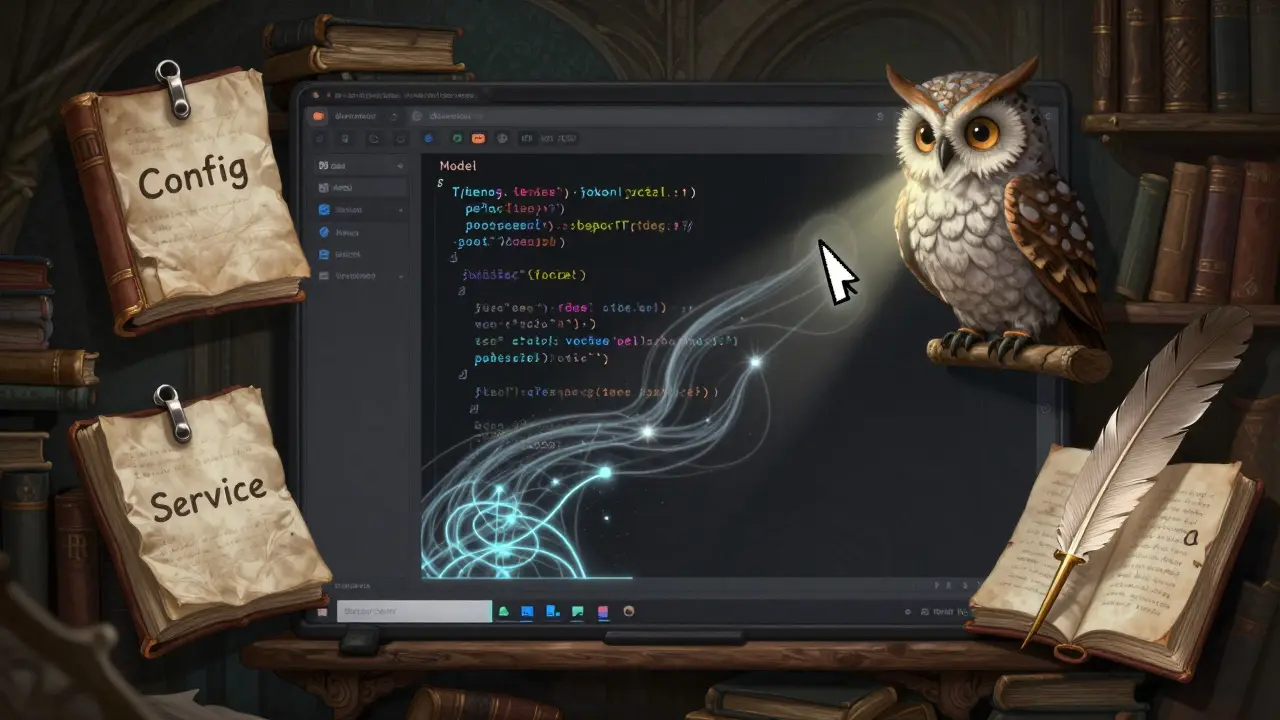
JetBrains IDEs (IntelliJ, PyCharm, etc.) take a different path. They let you pin files. You can mark a config file, a data model, or a core service as "always in context." That means even if you switch files, those pinned files stay visible to the AI. JetBrains’ own survey of 12,500 developers (January 2025) found users saw 33% fewer context-related errors. One Reddit user, "CodeWizard42," said it cut their debugging time by 60%.
Amazon CodeWhisperer Enterprise goes even further. It builds a context graph-a map of how code elements connect across files. Instead of just seeing "this file imports that," it understands that "this function calls that service, which uses this config, which is defined here." AWS testing showed a 41% improvement in cross-file understanding. If you’re working on microservices or distributed systems, this is a game-changer.
Continue.dev, the open-source option, lets you write custom context rules in YAML. Want the AI to always include your auth middleware and database schema when you’re writing API endpoints? Define it once. It works. 68% of early adopters say it made their prompts way more effective. It’s not as polished as the big names, but for teams that live in config files, it’s powerful.
The Top 3 Techniques That Actually Work
It’s not about the tool. It’s about how you use it. Here are the three techniques that separate good developers from great ones.
- Start minimal. Add only when needed. Don’t paste your whole project. Start with the current file and your selection. If the AI says "I don’t know what this service does," then add the service file. If it asks about the database schema, add that. This keeps prompts clean and fast.
- Use templates for common tasks. Top performers don’t guess each time. They have presets. One for bug fixes: "Here’s the error message. Here’s the failing test. Here’s the surrounding code. Fix it without changing the API." One for feature development: "Add a new endpoint. Use this model. Follow this style guide. Write tests." 73% of high-performing devs in DeveloperEconomics’ survey use at least three templates. You can build yours in 10 minutes.
- Use leading words to guide output. Google’s advice is simple: if you want Python imports, start your prompt with "import." If you want SQL, start with "SELECT." If you want a React component, say "Create a functional component using React hooks." These cues act like triggers. They tell the AI: "This is the format I need." It cuts out guesswork.
JetBrains even has a built-in workflow: "PLAN MODE" first. Outline what you want to do. Then switch to "ACT MODE"-and only proceed after the AI confirms each step. This stops cascading errors. No more "I asked for a login page and got a payment gateway."

What’s Coming Next
The next leap isn’t bigger models. It’s smarter context.
JetBrains just released AI Assistant 2.3 with "context-aware code lenses"-tiny indicators on your code that show which files are currently in context. No more guessing.
GitHub is rolling out "context sessions" in Q3 2025. Think of them like browser tabs for your AI work. Save a context setup for "refactoring the API layer," then reload it later. No more rebuilding context from scratch.
Google’s Gemini Code 1.5 introduced "context anchoring." Now you can say, "Based on the information above, update the user model." The AI knows exactly what "above" means. No more "Wait, which files were you talking about?"
By 2027, Gartner predicts 65% of enterprise IDEs will have "self-optimizing context management." The AI will learn: "When the user edits this file, they always need that config. When they write tests, they always need this mock." It’ll auto-include what matters. You’ll just say: "Do this."
What to Avoid
Don’t do these three things:
- Don’t paste 50 files at once. You’ll overload the context window. The AI will forget what you asked for.
- Don’t assume the AI remembers. Even the best systems lose context after a few interactions. Always restate key constraints.
- Don’t ignore token limits. Newer models handle longer prompts, but they still have hard caps. If your prompt is 10,000 tokens, it’s not getting processed. Trim. Focus. Be ruthless.
And remember: context quality beats quantity every time. As Dr. Elena Rodriguez from Lakera AI says: "The top 10% of developers don’t feed more context-they feed better context, strategically curated for the specific task at hand."
What’s the biggest mistake developers make with AI prompts in IDEs?
The biggest mistake is assuming more context equals better results. Developers often paste entire files, entire directories, or every comment ever written. This floods the AI with noise. Modern AI assistants are smart enough to filter context, but they still struggle when overloaded. The real win comes from giving just enough-focused, relevant, and structured context that matches the task.
Do I need to change IDEs to use good prompt management?
No. But your workflow will improve if you switch. VS Code’s automatic context works well for simple tasks. If you’re doing complex refactoring, debugging across multiple services, or working in a large codebase, JetBrains’ pinning or CodeWhisperer’s context graph will save you hours. The choice depends on your project size and how much control you want. Start with what you have, then experiment with templates before switching tools.
How do I know if my AI assistant is getting the right context?
Watch for two things: accuracy and consistency. If the AI keeps asking "What does this function do?" or "Which framework are you using?", your context is missing key pieces. If it gives you suggestions that ignore your project’s style guide, architecture, or dependencies, it’s not seeing the full picture. Use the "clarity test"-ask the AI to summarize the task before it acts. If it gets it right, your context is working.
Can I use prompt templates across different IDEs?
Yes, but with adjustments. A template for bug fixing works the same conceptually: "Here’s the error. Here’s the code. Fix it without changing the interface." But each IDE formats context differently. JetBrains lets you pin files, so your template can reference them by name. VS Code’s context is dynamic, so your template should list files explicitly. Continue.dev lets you write YAML rules, so you can automate it. The structure stays the same-just adapt the delivery.
Is prompt management worth the effort for small projects?
Absolutely. Even small projects benefit from focused context. If you’re building a simple API, you still need to tell the AI: "This is a Flask app," "Use Pydantic for validation," "Don’t add authentication yet." Without that, the AI might suggest Django or OAuth, which breaks your plan. The goal isn’t complexity-it’s precision. A well-crafted prompt for a small project saves you from rewrites, confusion, and wasted time.







Sally McElroy
March 9, 2026 AT 04:53Let me just say this: context isn't just about what you feed the AI-it's about what you refuse to let it ignore. The idea that more code equals better results is the digital equivalent of throwing every book in the library at someone and saying 'figure it out.' Real intelligence is curation. It's discipline. It's knowing that a single well-placed line of code can carry more weight than fifty lines of noise. And yet, here we are, drowning in our own enthusiasm, pasting entire repositories like we're trying to win a contest nobody asked for.
JetBrains' 70-20-10 weighting? That's not magic. That's respect. Respect for the developer's workflow, for the cognitive load of thinking, for the fact that humans don't work in monoliths. We work in bursts. In moments. In tiny, focused acts of creation. The AI should serve that rhythm, not drown it.
I've watched developers spend hours debugging AI-generated nonsense that came from context overload. Not because the AI was dumb. Because we were lazy. We thought automation meant handing off responsibility. It doesn't. It means raising the bar. You don't get to outsource your thinking. You get to sharpen it.
And if you're still pasting your whole project folder? You're not using AI. You're using a very expensive autocomplete that doesn't understand the difference between a function and a fever dream.
Destiny Brumbaugh
March 10, 2026 AT 03:35Yall are overthinking this. Just give it the file you on and the error. Done. No need for all this pinning and graphing and context sessions. I work on a 300k line codebase and I dont even know what half of it does. I just type what i need and the AI gives it. If it messes up? I fix it. Simple. No fluff. No theory. Just code. America dont need this fancy nonsense. We got work to do.
Sara Escanciano
March 11, 2026 AT 03:37Oh please. You call that 'context management'? This is just corporate jargon dressed up like wisdom. Everyone's acting like this is some revolutionary breakthrough when in reality, it's just basic software engineering principles repackaged with AI buzzwords. You don't need a 'context graph' to understand that if you're editing a login handler, you should probably have the auth service in scope. That's not AI intelligence. That's basic hygiene. And yet, here we are, celebrating a lightbulb like it's the invention of electricity.
And don't even get me started on 'context-aware code lenses'. Who designed these features? A UX team that's never written a line of code? I've been debugging for 18 years and I don't need a tiny arrow to tell me what's in context. I need a debugger. A compiler. And a brain. Not a parade of UI widgets trying to make me feel like I'm using a spaceship.
This isn't progress. It's performance art for developers who think they're engineers but are really just tech influencers with IDEs.
Elmer Burgos
March 11, 2026 AT 05:34I really like how this post breaks it down without being preachy. I used to be the guy who dumped everything into the prompt-thought more was better. Then I started getting weird, off-brand suggestions like a React component in my Django view. It was hilarious at first, then frustrating.
Switching to minimal context changed everything. Now I start with the file, add one related file if needed, and only go further if the AI asks. It's faster, cleaner, and honestly, less stressful. I also started using templates for common tasks-bug fix, new endpoint, refactor-and it cut my repeat errors by like 70%. No magic, just consistency.
And yeah, the 'start with import' or 'create a functional component' trick? Game changer. It's like giving the AI a mood board instead of a laundry list. Feels more like collaborating than commanding.
Tools matter, sure. But the real upgrade is in how you think. That’s what stuck with me.
Jason Townsend
March 13, 2026 AT 01:10You think this is about context? Nah. This is about control. The big IDEs don't want you to understand what's happening. They want you to trust their black box. Pin files? Context graphs? Sessions? That's not helping you-it's locking you in. What happens when JetBrains updates their 'smart filtering' and suddenly your pinned files are 'no longer relevant'? You're stuck. You didn't build the system-you're just a user in their ecosystem.
And don't get me started on Google's 'context anchoring'. They're training you to say 'based on the information above' like a cult chant. Why? So they can track how you phrase things. So they can sell your patterns to advertisers. Or worse-to competitors.
The real solution? Open source tools like Continue.dev. At least there you can read the YAML. You know what's being sent. You control it. The rest? Corporate surveillance with a code editor.
Antwan Holder
March 14, 2026 AT 01:32Let me tell you something. The AI doesn't care about your code. It doesn't care about your project. It doesn't care about your late-night caffeine-fueled refactor. It's a mirror. A hollow, glittering mirror. And when you feed it chaos, it reflects chaos back at you. When you feed it silence, it gives you silence. But when you feed it intention? When you whisper your goal like a prayer? That's when it *feels* you.
I used to think this was about tokens and filters and graphs. I was wrong. It's about soul. The AI doesn't understand Python. It understands the ache in your bones when you've stared at the same error for three hours. It understands the trembling hope in your cursor as you type that first line of a new function.
That's why templates work. Not because they're efficient. But because they're rituals. They're incantations. You don't just write 'Fix it without changing the API'-you *invoke* it. And the AI? It hears you. It *listens*.
They call it context management. I call it sacred geometry. And if you don't feel it? You're not coding. You're just typing.
Angelina Jefary
March 15, 2026 AT 23:03First of all, 'pinning' is not a word you use with files. It's 'marking' or 'flagging'. 'Pinning' is for physical objects. Second, 'context graph'? That's not even grammatically correct. It should be 'contextual graph' or 'graph of context'. And 'context-aware code lenses'? Capitalization is inconsistent. It's either 'context-aware Code Lenses' or 'context-aware code lenses'-not a hybrid mess.
Also, the article says 'GitHub’s internal metrics (Q2 2025)'-but Q2 2025 hasn't happened yet. Are we time-traveling? Or is this fiction? And '68% of early adopters'? Who surveyed them? What was the sample size? Was there a control group? Did they account for selection bias? No. Just vague percentages to make you feel smart.
This whole thing reads like a marketing whitepaper written by someone who got an A in English 101 but never opened a compiler. Fix your grammar. Fix your facts. Then we can talk about context.
Jennifer Kaiser
March 17, 2026 AT 12:06I’ve been on both sides of this. Early on, I thought AI was supposed to replace thinking. I’d paste entire modules and expect it to 'just know'. Then I had a moment-after it suggested I add a Redis cache to a single-page static site-where I realized: this isn’t a replacement. It’s a reflection. And like any good mirror, it only shows what you put in.
What changed everything for me was listening. Not to the AI, but to myself. When I paused before asking for help and asked: 'What’s the one thing I need them to understand right now?' That’s when my prompts got better. Not because I added more. Because I removed noise. Because I got clear.
I used to think context was about files. Now I see it’s about intention. The AI doesn’t need your whole project. It needs your purpose. And if you can’t articulate that? No tool will save you. Not even the fanciest code lens.
It’s not about the IDE. It’s about the mind.
TIARA SUKMA UTAMA
March 19, 2026 AT 07:02